1Start here
LIVE-IN is a plug-in for Logic Pro that shows your live show on an iPad on the music stand: the section you're in, the chords, what comes next, the click and the holds, in sync with Logic. It also plays the click in your headphones.
You need: a Mac with macOS 11 or later and Logic Pro, an iPad with iPadOS 16 or later, the free LIVE-IN Screen app from the App Store, and a USB cable.
No Mac at hand? The iPad app has the same show built in: tap TRY THE DEMO.
2Connect the iPad
- Open LIVE-IN Screen on the iPad.
- Connect it to the Mac with the USB cable. It connects by itself: no Wi-Fi, no Bluetooth, nothing to pair.
- Open your Logic project with LIVE-IN in it.
Two lights at the top right of the iPad tell you where you are: USB (the cable) and LOGIC (Logic is answering). Both green: you're ready.
If the cable comes out or Logic stops answering during a show, the iPad says so in red, impossible to miss (NO CABLE or NO LOGIC), with where you were. It reconnects by itself.
No iPad? The Screen page of the plug-in shows the same screen on the Mac, in a separate window or full screen (also with Sidecar).
3Your show: the MIDI file
LIVE-IN reads your show from one MIDI file that you export from Logic. Here's what goes in it, how to export it, and how to update it.
Markers
- 1M1_Title starts a song (a cue number, then the title:
1M1_Morning Light,1M2_Evening Tide…). - END (or FINE) ends a song: Logic will stop there, unless you say KEEP GOING.
- Every other marker is a section: Intro, Verse, Chorus, Solo…
Click and chords
- A click track: a MIDI track with one note per beat, the downbeat on a different note. Optional: see section 4.
- A chord track: a MIDI track with the chords played as notes (name it “Chords”). Optional too: you can write chords by hand.
Export the MIDI file, then import it in LIVE-IN
- Add LIVE-IN on a Software Instrument track: AU Instruments › Simple Things We Use › LIVE-IN. Send its output to your headphones only: that's where the click comes out.
- Select the click track and the chord track, then File › Export › Selection as MIDI File. The markers go into the file too. Save it next to the project.
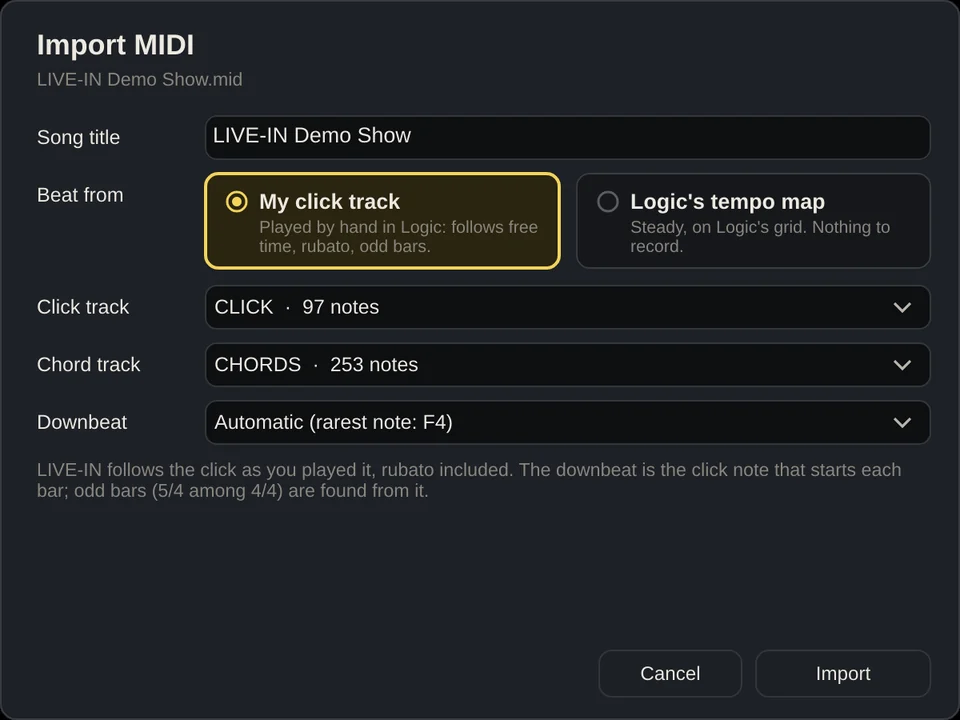
- In LIVE-IN: File › New show from a MIDI file, pick the file, check the tracks, Import.
4Give LIVE-IN the beat
You choose when you import, and you can change it any time on the Click page (Change…).
My click track
Record the click by hand on a track, the way you really play. LIVE-IN follows it beat by beat: free time, rubato, ritardando. It finds the odd bars (a 5/4 among 4/4) by itself, from the downbeat note.
Logic's tempo map
Nothing to record: LIVE-IN uses Logic's tempo map and time signatures, which travel inside the exported MIDI file. Steady, on the grid.
Or no click at all: then LIVE-IN shows markers and chords only (no bars, no count-in).
The Click page
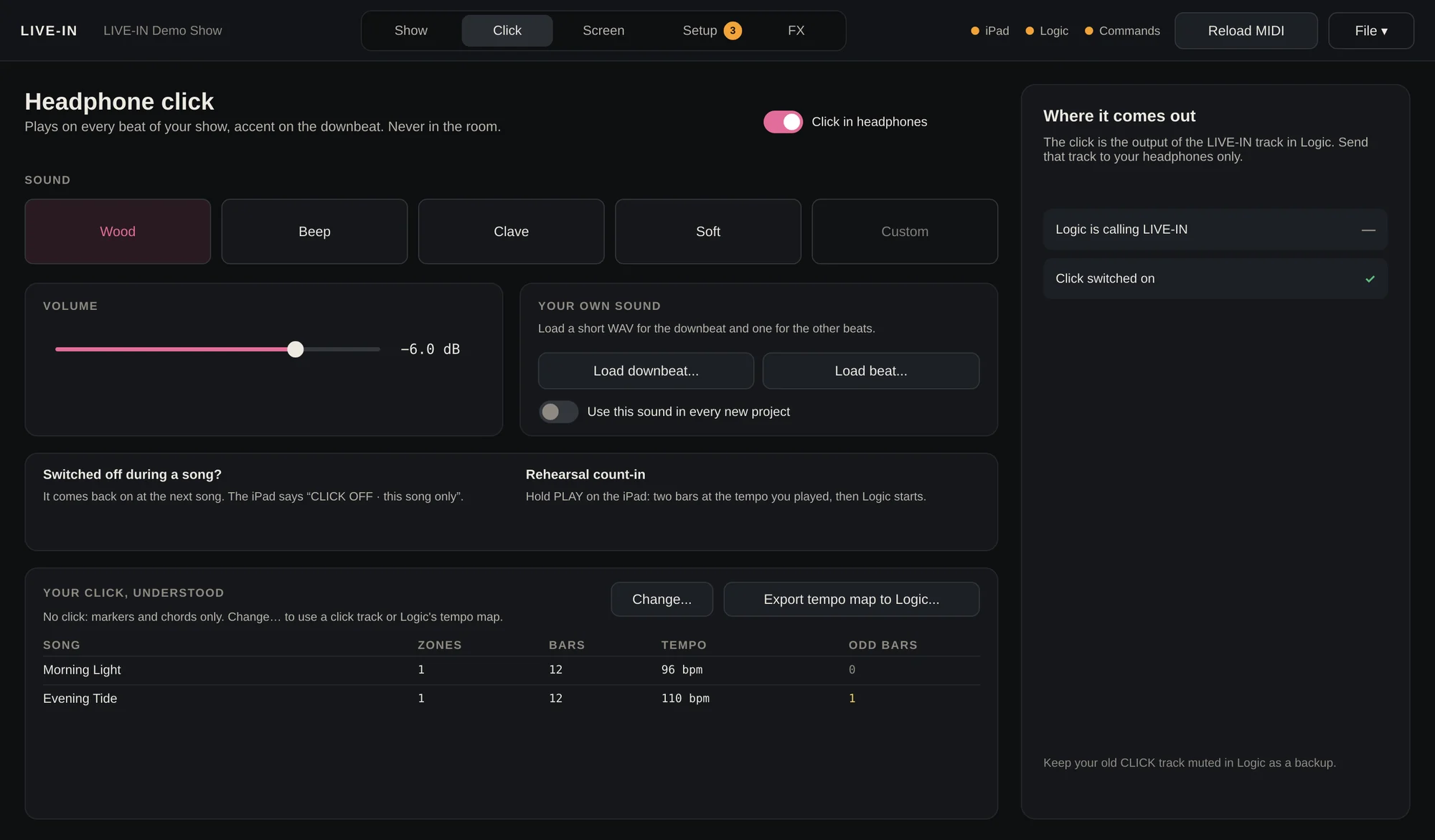
- Click in headphones on or off, four sounds (Wood, Beep, Clave, Soft) or your own WAV/AIFF for the downbeat and the other beats, and the volume.
- Your click, understood: song by song, the tempo, the bars and the odd bars LIVE-IN found. A quick check that it read your click right.
- Export tempo map to Logic…: turns your hand-played click into a Logic tempo map, if you want Logic's grid to follow you too.
5Write your show
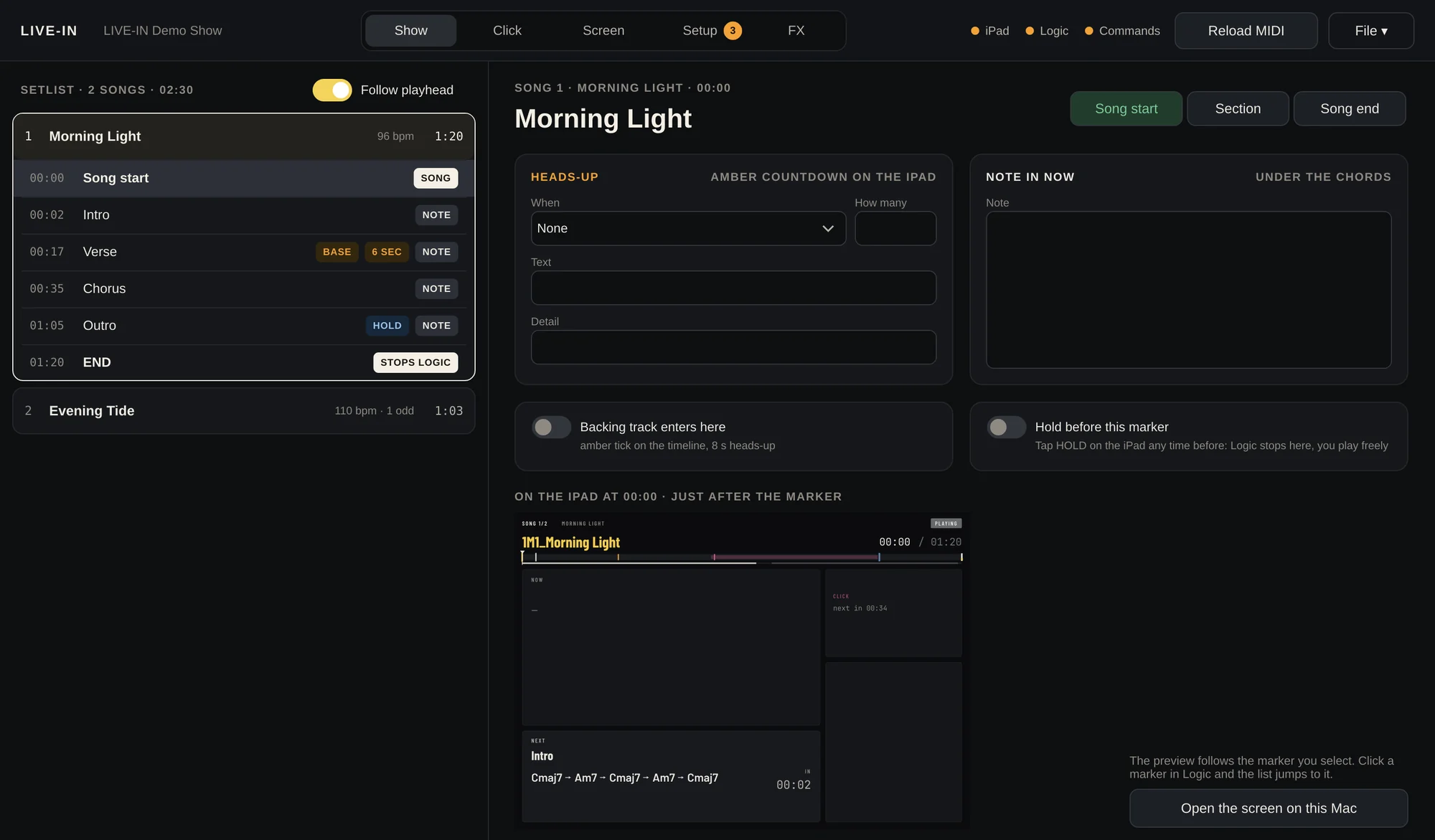
The Show page lists the songs and markers from your MIDI file. Click a marker (or move Logic's playhead to it, with Follow playhead on) and write what you need. The preview at the bottom shows the iPad as it will be just after that marker.
- Song start · Section · Song end: what the marker is. LIVE-IN guesses it from the name; change it here if needed.
- Note in NOW: a few words under the chords (“Piano alone, free time”).
- Heads-up: an amber countdown before the marker, in clicks or in seconds, with your text (“Backing track in”).
- Backing track enters here: an amber tick on the timeline and an 8-second heads-up.
- Hold before this marker: a point where Logic can stop and you play freely as long as you like (see On stage).
Everything is saved inside the Logic project, with automatic backups (File › Backups, the newest 30 kept). File › Save a copy as show file makes a .livein file you can open in another project.
6On stage
Reading the iPad
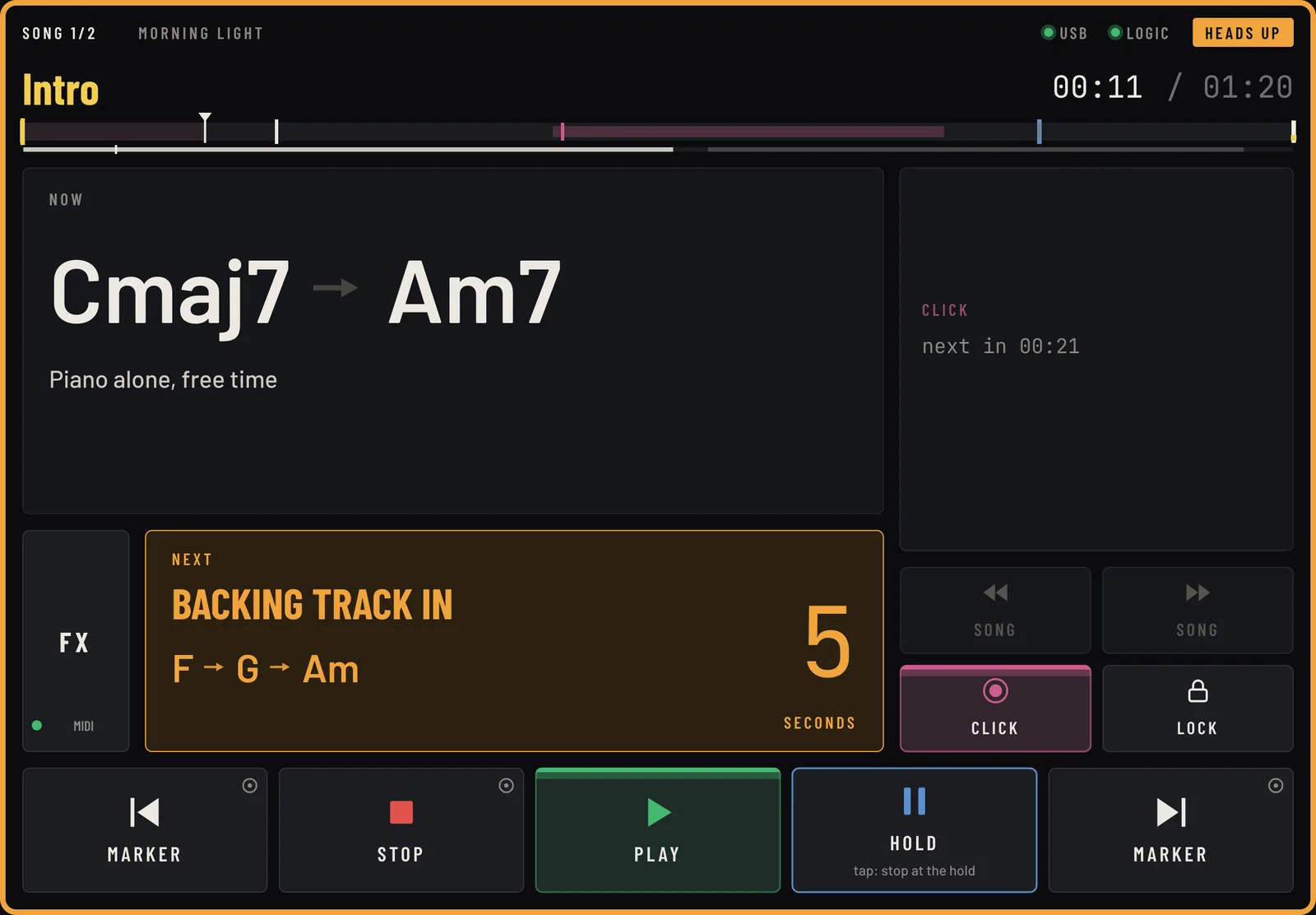
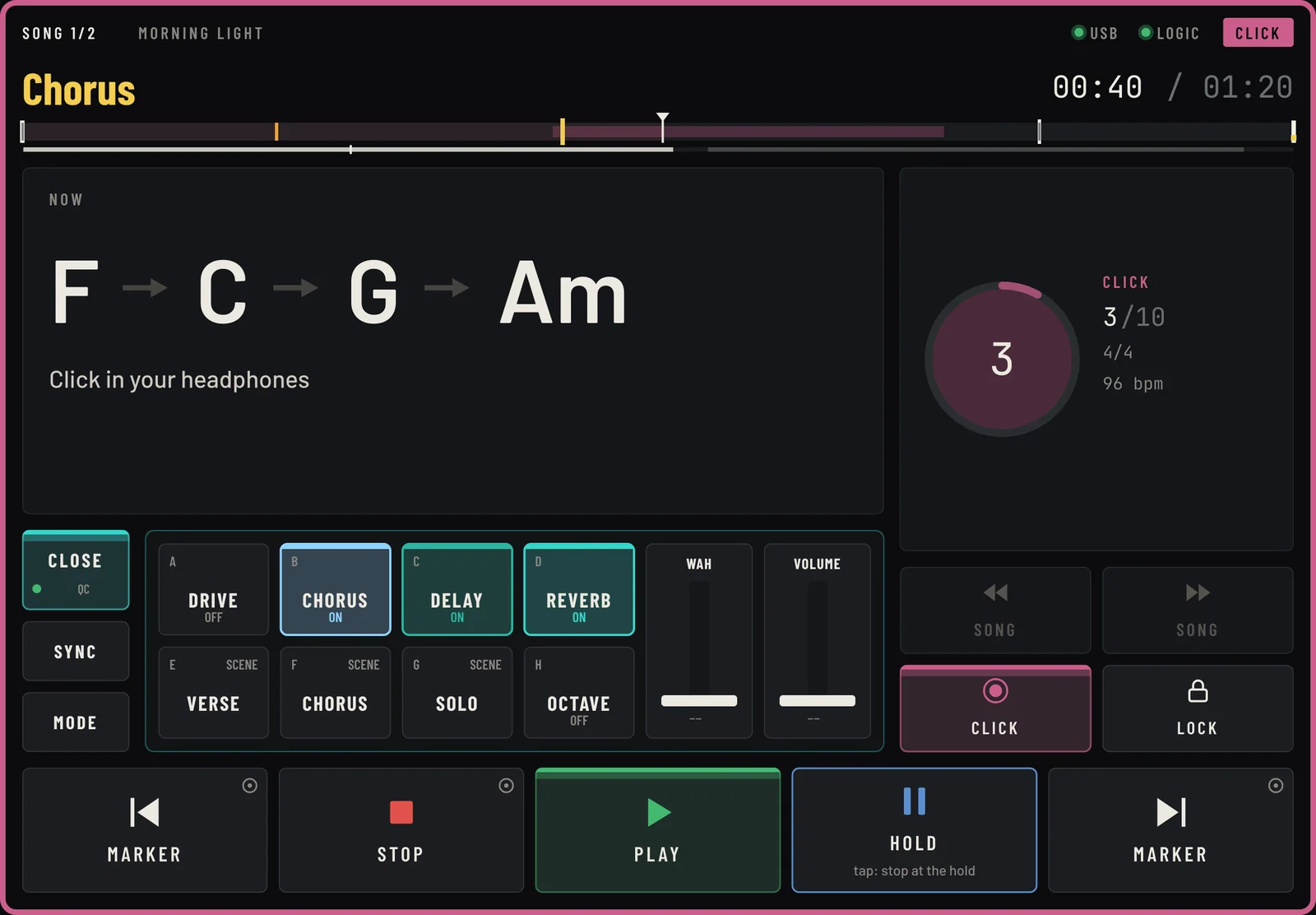
- Top: song and section, the time in the song, the timeline with your markers. The coloured frame and the label on the right say what's happening: CLICK, HEADS UP, HOLD, END OF SONG, READY.
- NOW: the chords of this section (the current one lit) and your note.
- NEXT: what comes next and in how long. When a heads-up starts it turns amber and counts down.
- Click: the beat ring, the bar count and the tempo. An odd bar is announced one bar before: NEXT BAR 5/4.
The keys
LIVE-IN never starts or stops Logic on its own. The keys send commands you assign once in Logic, and while the music plays the risky ones need a long press (a small ring in the corner; a bar fills while you hold), so a stray tap never stops a song.
- ◀ MARKER / MARKER ▶: previous / next marker. PLAY and STOP.
- Count-in: with Logic stopped, hold PLAY: two bars of click at the tempo you played, then Logic starts.
- HOLD: when a hold is coming, tap HOLD during its heads-up (HOLD SET, tap again to cancel): Logic stops on the bar. Play freely, the stopwatch runs; tap RESTART when you're ready.
- KEEP GOING: before a song end, PLAY becomes KEEP GOING: tap it and Logic plays straight on.
- ◀◀ SONG / SONG ▶▶: with Logic stopped, jump between songs (long press ◀◀ for the start of the show). Between songs the iPad shows READY with the next one.
- CLICK: click off for this song only; it comes back at the next song. LOCK: every key needs a long press (long press LOCK to unlock). Useful when someone else has the iPad, in a recording booth for example.
Assign the keys in Logic (once)
In Logic: Logic Pro › Control Surfaces › Controller Assignments, Learn, then press the key on the iPad. Input: Logic Pro Virtual In. Assignments stay in Logic, for every project.
| iPad key | Sends | Assign to |
|---|---|---|
| ◀ MARKER | CC 102, ch 16 | Go to Previous Marker |
| MARKER ▶ | CC 103, ch 16 | Go to Next Marker |
| PLAY | CC 104, ch 16 | Play |
| STOP | CC 105, ch 16 | Stop |
| HOLD | CC 106, ch 16 | Play or Stop |
7FX page
A tap on FX on the iPad swaps NEXT for eight switches and two faders that control your effects unit, right next to the chords. You set them up on the plug-in's FX page; they're saved with the project.
Quad Cortex, in 5 steps
- On the unit: Settings › MIDI, MIDI Over USB on. Connect it to the Mac and pick Quad Cortex as destination.
- On the unit, put the blocks you want on footswitches.
- Each slot (A–H): Stomp or Scene, press Test and watch the unit. Name it, pick a colour.
- Stomps: tick Starts on if the block is on in the preset as saved.
- Faders: assign a parameter to Expression 1 or 2 on the unit, then move Test.
On the iPad: SYNC sends what the iPad shows (the unit sends nothing back), MODE changes the unit's mode in turn: Preset, Scene, Stomp.
Any other unit: Generic MIDI
Choose the unit's MIDI port (or LIVE-IN FX to control things inside Logic). Each slot is a Toggle, a Select (one at a time, like scenes) or a Trigger, sending a CC, a note or a program change from the unit's MIDI chart; each fader sends a CC. Press Test to check. Never assign Play or Stop in Logic to an FX slot.
Profiles for more units (Fractal, Line 6 Helix, Kemper…) will come one at a time. Tell us which one you play.
8Licence, trial and help
- Trial: 15 days, full, on each Mac. It's checked only when a project opens, never during a show.
- Activate: File › Activate licence…, paste the key from your purchase email. Internet once, then never again.
- Move to another Mac: one licence works on two Macs. File › Licence… › Deactivate this Mac first. Lost a Mac or your key? Write to us.
- Uninstall: Applications › LIVE-IN › Uninstall LIVE-IN. Your shows, backups and projects stay.
If something doesn't work
The iPad says “Waiting for LIVE-IN on the Mac”.
Check the USB cable, then open the Logic project with LIVE-IN in it. If it still waits, unplug and plug the cable again: it reconnects by itself.
The iPad doesn't follow the playhead while Logic is stopped.
Logic only “calls” a plug-in while it's needed. Send the LIVE-IN track's output to your headphones (or arm the track). The Setup page shows a green light when it's right.
I don't hear the click.
On the Click page, check “Click in headphones” is on. The click comes out of the LIVE-IN track: check that track's output goes to your headphones. No click track and no tempo map? Then there's no click: Change… on the Click page.
The iPad keys don't move Logic.
Assign them once in Logic's Controller Assignments (table above), then run the test on the Setup page: it tells you which command doesn't arrive.
Odd bars or tempo look wrong.
Check the downbeat note in the import window (Reload MIDI keeps your notes): the downbeat is the click note that starts each bar. “Your click, understood” on the Click page shows what LIVE-IN read.
The iPad screen feels a little late or early.
Screen page › Screen offset: a few milliseconds of advance, tuned by eye on the click ring.
What happens when the trial ends?
The plug-in asks for a key and the iPad says “Trial ended”. Your shows are kept and come back as soon as you activate. It never happens in the middle of a show: the trial is only checked when a project opens.